
Data Loss Prevention (DLP) refers to the procedures implemented to prevent sensitive personal or corporate data from being accessed or leaked by unauthorized individuals. Forcepoint DLP aims to prevent potential data loss through data encryption, monitoring, classification, and discovery. Security policies configured with Forcepoint DLP are designed to identify and protect data in use (data-in-use), data in motion (data-in-motion), and data at rest (data-at-rest) within an organization’s network.
DLP policies define conditions under which users can interact with data. These policies include:
Post-pandemic environmental factors, such as the widespread adoption of remote working models, necessitate secure and authorized access to company data outside the office. Such access must be controlled by security standards set by organizations.
FileOrbis is a platform designed to securely facilitate file transfers and management between organizations and users. By managing file servers and on-premises or cloud-based storage systems, it provides a centralized access channel and integrated management system for files. It ensures file protection with security measures such as file encryption, user access monitoring and management, and redundancy. In addition to facilitating user access and authorization for files, FileOrbis supports file labeling and the application of management policies based on assigned labels.
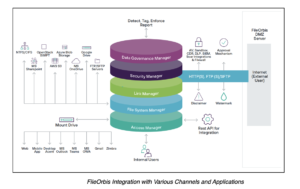
In this article, Forcepoint DLP’s Protector component is integrated with FileOrbis using the ICAP protocol to implement data security during file access. The Protector acts as a Mail Transfer Agent (MTA), monitoring and reporting web traffic, encrypting, blocking, or quarantining email traffic. It also supports DLP scanning through integration with third-party proxies using the Internet Content Adaptation Protocol (ICAP) over HTTP and HTTPS channels.
FileOrbis ensures that files are sent to Forcepoint DLP via ICAP over TLS. Organizations with Forcepoint DLP systems can configure security policies defined in DLP on file traffic within FileOrbis using Protector.
Once access to the FSM interface is obtained, navigate to the Deployment menu, select the System Modules tab, and configure the ICAP server within Protector.
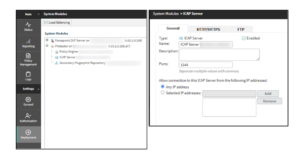
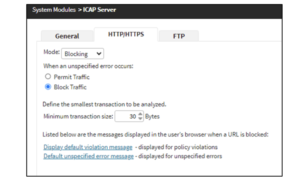
In the HTTP/HTTPS tab, the Mode field offers two modes:
To track file transfers on FileOrbis using Forcepoint DLP Protector, create rules in DLP tailored to specific requirements. For clarity in this article, a “script” condition for identifying Turkish Republic Identification Numbers (TCKN) has been used. Relevant policies can be configured according to organizational requirements and file content.
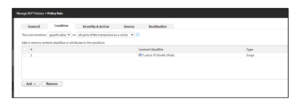
During policy configuration, ensure that the HTTP/HTTPS channel is activated in the Destination section.
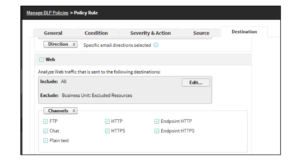
Additionally, in the Severity & Action section, use the “view or edit this action plan” icon to define actions for HTTP/HTTPS traffic.
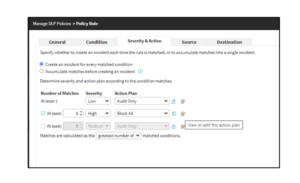
For this article, if a file processed on FileOrbis contains a single TCKN, the system logs and reports the incident (“Audit Only”). If a file contains three or more TCKN entries, the system blocks the activity.
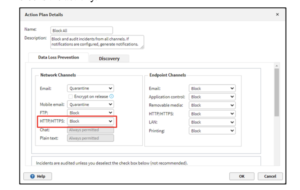
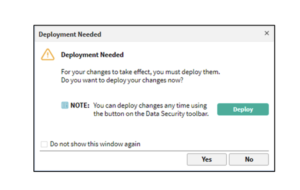
After completing configurations, click the “OK” button in the bottom-right corner to save settings. A pop-up confirms that the configurations have been saved to the system.
Once policy and ICAP configurations are complete on Forcepoint DLP, log in to the FileOrbis Management Portal. Select the Security menu and manage integrations via the DLP menu.
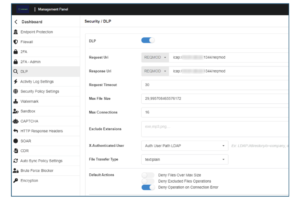
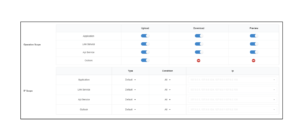
| Parameters | Explanation |
| Request Uri | The IP information and port information belonging to the ICAP server must be configured
Example: icap://ip address:1344/reqmod |
| Response Uri | The IP information and port information belonging to the ICAP server must be configured
Example: icap://ip address:1344/reqmod |
| Request Timeout | The maximum timeout for ICAP is configured. |
| Max File Size | The maximum file size to be sent to DLP via ICAP is configured. |
| Max Connections | The maximum number of connections between DLP and ICAP is configured. |
| Exclude Extensions | Can be configured to prevent specifically specified file extensions from being sent from FileOrbis to the ICAP in DLP.
Example: .txt,.pptx etc. |
| X-Authenticated-User | Configured to display user information used to view or report related incidents on Forcepoint DLP. |
| Default Actions | If the rules here are active, FileOrbis will stop the action before it reaches DLP. |
| Operation Scope | Configures which services and actions on the system DLP will be allowed to operate on. |
| IP Scope | Configures the IP or XFF information that is desired to be allowed or blocked in the rules set on Forcepoint DLP. |
After completing configurations, use “Check Configuration” in the top-right corner to validate settings. If there are no system issues, a “Configuration Check Succeed” message is displayed, and configurations are saved by clicking “Save.”

If no blocking action plan is configured in Forcepoint DLP rules, users performing actions on FileOrbis can proceed even if they violate DLP rules. However, if a blocking rule is configured, users violating DLP policies will see a warning message on FileOrbis.
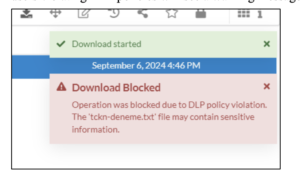
Policy violation reports can be viewed via the Forcepoint DLP console or the Usage Reports section in the FileOrbis Management Portal.
Test uploading files matching Forcepoint DLP rules through FileOrbis. In this article, a .txt file containing TCKN information was used to test the predefined TCKN rule.
Reporting for related incidents can be viewed on the Forcepoint DLP interface by navigating to the Reporting menu and selecting Data Loss Prevention > Incident.
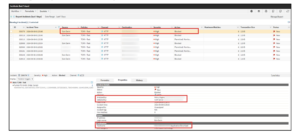
The relevant activity detected by the ICAP server configured in FileOrbis can be viewed under the Properties tab. For activities related to uploading files to FileOrbis, entries are tagged as /Upload, while download activities are tagged as /Download.
This article has detailed the integration steps for ensuring data security in file transfers on FileOrbis using the Forcepoint DLP Protector component and ICAP protocol. This integration aims to provide centralized security management for organizations utilizing FileOrbis and Forcepoint DLP solutions, offering effective protection against data loss.
Thanks for diving into this topic with us! If you found this information valuable, please share it with your team. Stay updated on security best practices by visiting netsmartsecurity.nl, and connect with Netsmart on LinkedIn for the latest industry insights.


The rise of quantum computing introduces significant challenges to existing cryptographic systems.

In today’s post we’ll explain how to simulate Active Directory attacks using Splunk and various tools to improve an organization’s security posture.

In this blog post, we will cut through the confusion and explain the core differences between SIEM and SOAR, two essential security tools used to protect your organization.

The privileged accounts of organizations play an important role in today’s cybersecurity ecosystem. Protecting these accounts and the critical resources they access has become crucial for organizations to manage, control, and audit all privileged account activities.